12. PDF Report Generator
What is the report?
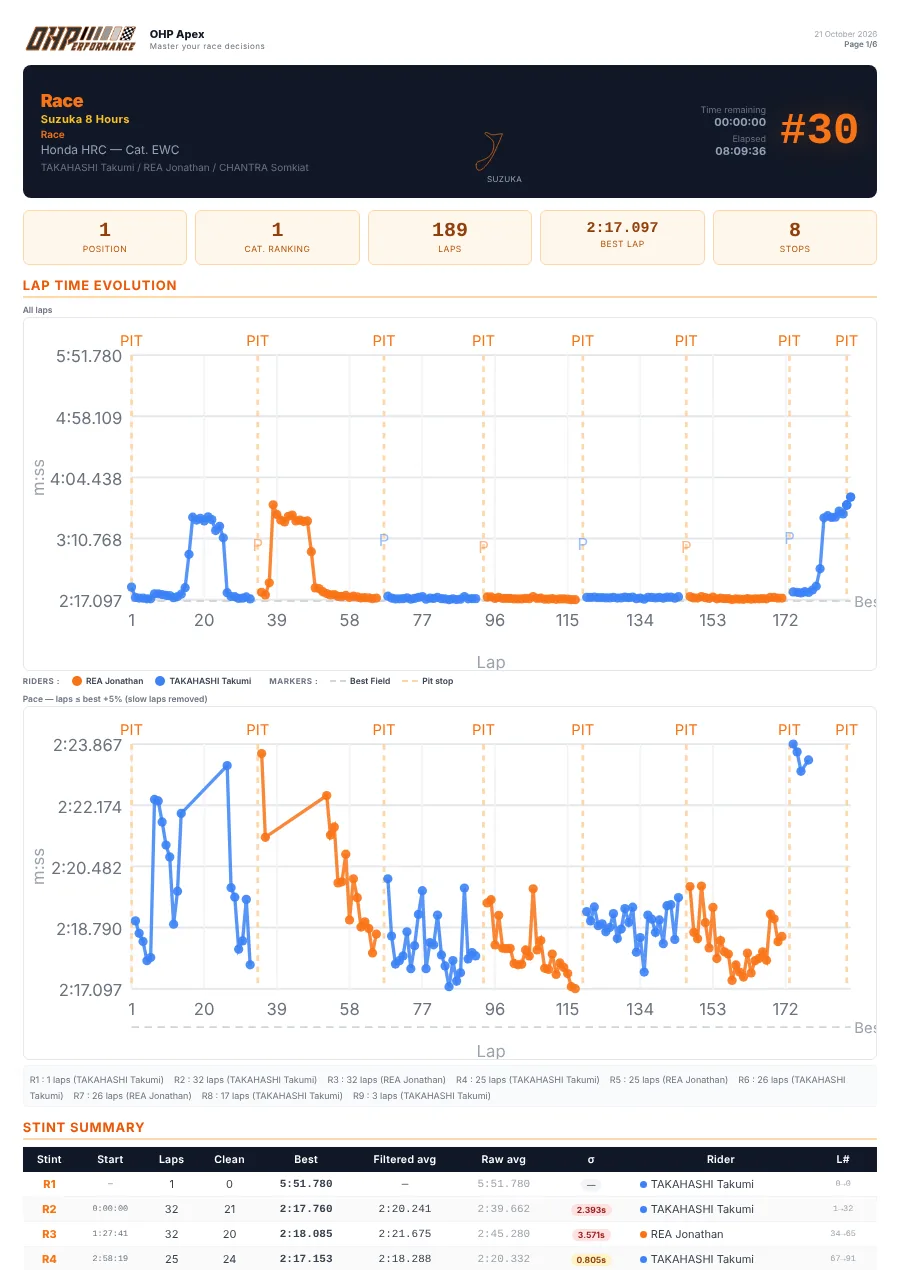
The report generates a 4 to 6 page A4 document, printable or exportable as PDF, containing a complete analysis of a selected bike. It is ideal for post-race debriefing or for sharing analysis with riders.
Report content
| Section | Content |
|---|---|
| Header | Race name, team, bike number, riders |
| KPIs | Position, laps, best lap, pit stops |
| Lap chart | Lap time evolution, coloured by rider |
| Stints | Detailed table by stint (duration, average, σ) |
| Strategy | Horizontal race diagram |
| Section | Content |
|---|---|
| Position history | Position evolution throughout the race |
| Sectors | Best S1, S2, S3 and theoretical time |
| By rider | Comparison of best lap / average / σ |
| Lap by lap | Complete table of all passages |
Generate a report
- Select a bike in the standings by clicking on it. Without a selection, the Report button is inactive.
- Click the "📄 Report" button in the control bar.
- A new window opens with the complete report. The window launches automatically in print mode.
- In the print dialog, select "Save as PDF" as the printer to create a PDF file, or choose your physical printer.
- Click "Save" or "Print".
Warning
Note: If a popup window is blocked by your browser, a notification is displayed. Allow popups for the OHP Apex application in your browser/system settings.