3. Interface overview
Overview
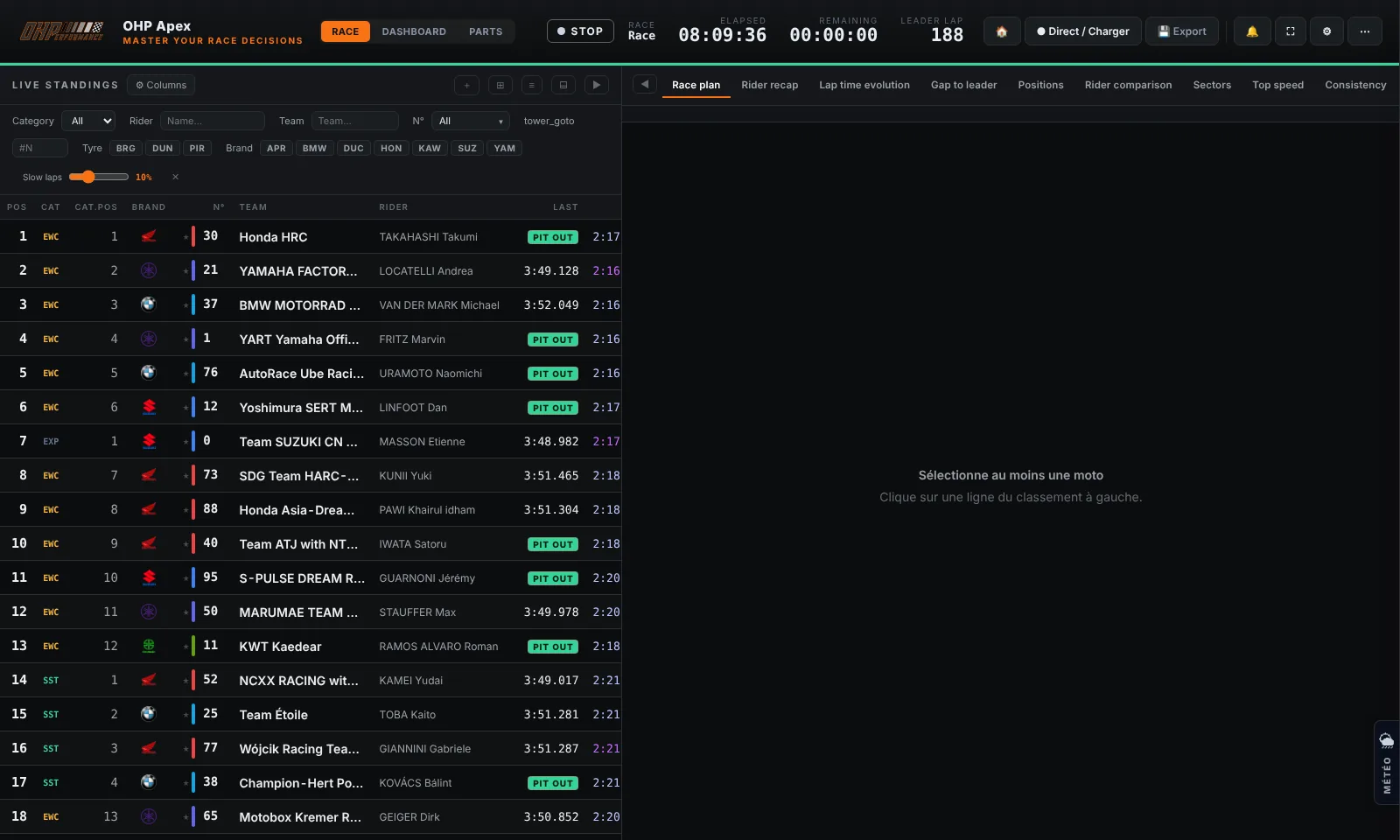
| Zone | Name | Description |
|---|---|---|
| ① | Top bar | Clock, race status, Live / Replay buttons, access to Settings |
| ② | Standings | List of all bikes ranked by position. Click a row to analyse it. |
| ③ | Analysis tabs | Different views: laps, sectors, pit strategy, pace, comparison… |
| ④ | Detail panel | Detailed data for the bike selected in the standings. |
| ⑤ | Filter bar | Filter by category, rider, team, bike number. |
| ⑥ | Pit Now | List of bikes whose stint is approaching or exceeding the configured fuel threshold. |
Colour code
● Green — Active connection, data received, value better than reference
● Orange — Pit alert, value in tyre degradation, OHP Apex accent
● Blue — Sector 1, informational data, secondary selection
● Red — Error, disconnection, best sector in the field
● Purple — Theoretical sector, personal best sector
● Grey — Data not available, neutral value, inactivity
Quick shortcuts
| Action | How |
|---|---|
| Select a bike | Click on the standings row |
| Set reference bike | Right-click on the row |
| Pin a bike | ★ icon on the row |
| Reset selection | Click on already-selected bike |
| Action | How |
|---|---|
| Open / close left panel | ◀ button at top of standings |
| Change view | Click on tabs above the panel |
| Change columns | "Columns" button in the bar |
| Generate a report | "Report" button (requires a selection) |